Show the timer
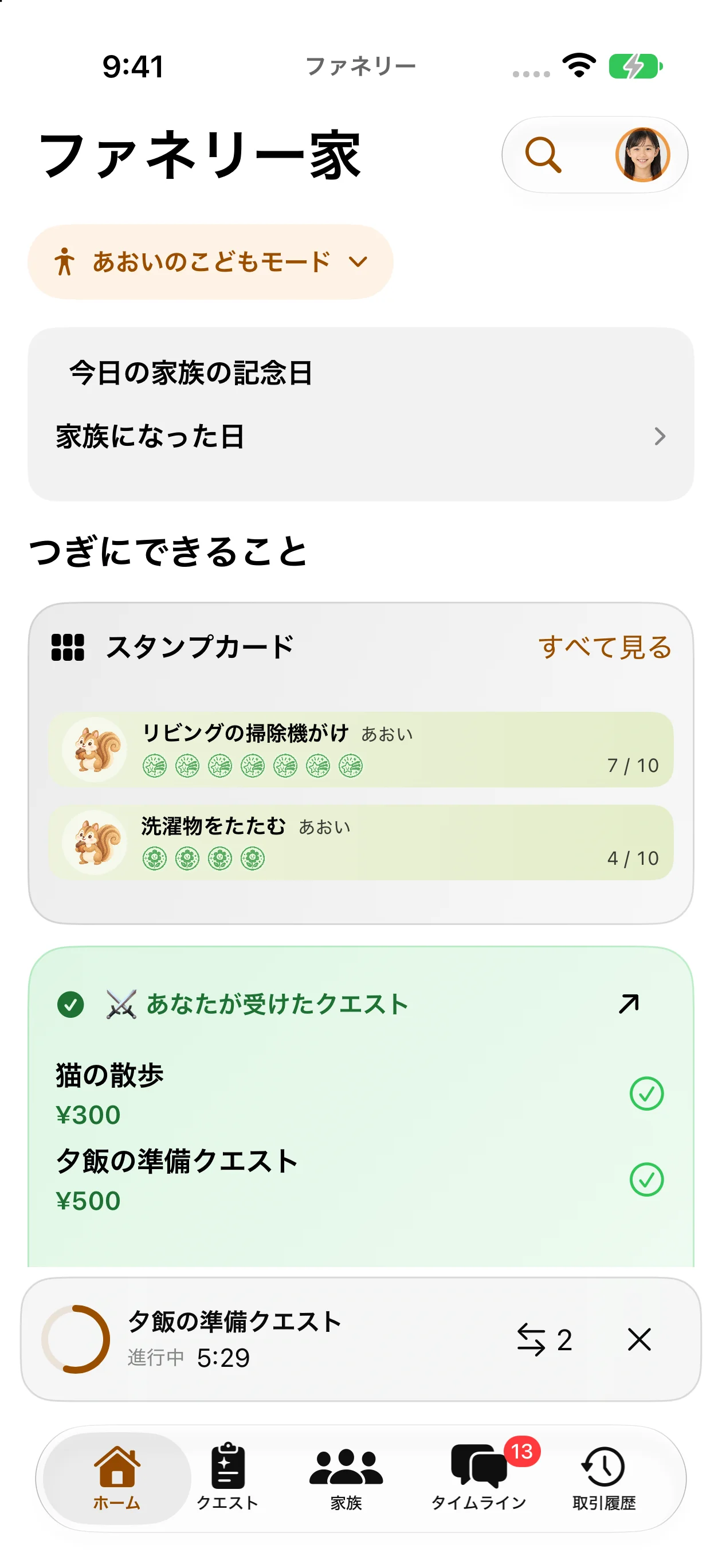
For a child, switch to their Child Mode, open a Quest assigned to them, and tap Start. Once it is in progress, a small window at the bottom shows time since the start. Moving to Home or another tab keeps the same start time.
Read the small window and expanded view
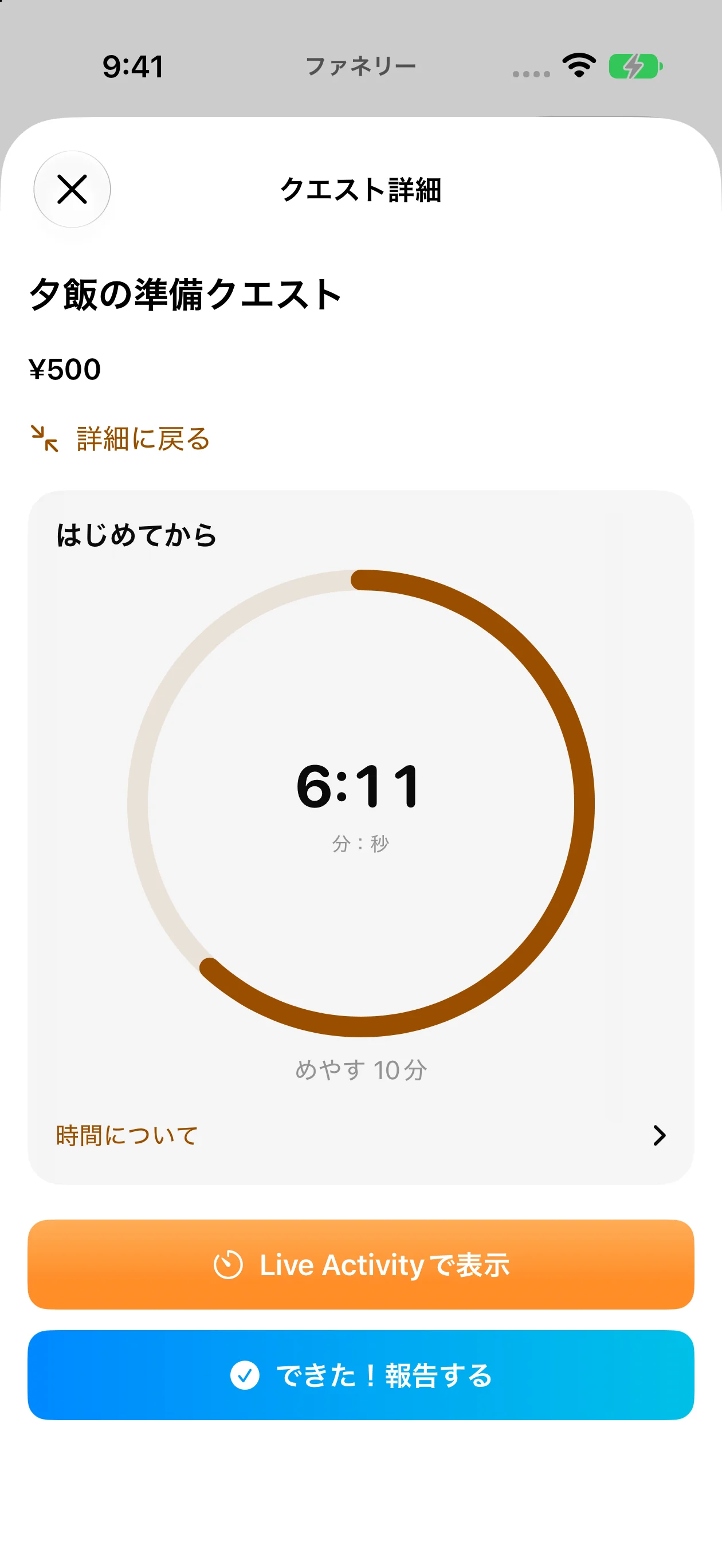
Tap the small window to expand it. Elapsed time includes breaks. When an estimated duration is set, the ring shows elapsed time relative to that estimate, not how much work is complete. Going over the estimate does not deduct points, complete the Quest automatically, or change the reward.
These examples were captured in the Japanese iOS app with demo data. Layout and labels may vary by OS and version.
Hide, restore, and finish timing
The × in the small window only hides it; timing continues. Tap Timer at the top to show it again. If several Quests are in progress, choose one to display. Timing ends when the completion report is successfully saved. Opening the report form or cancelling input does not end it.